Online Public Access Catalogue (OPAC)
The library is pleased to announce that a new online library catalogue system (KOHA) has been implemented recently for library users to search information on all the resources found in the Library. The system is easy to use and can be accessed via the MCKL Library OPAC.
Library members can also check the status of materials they have borrowed.
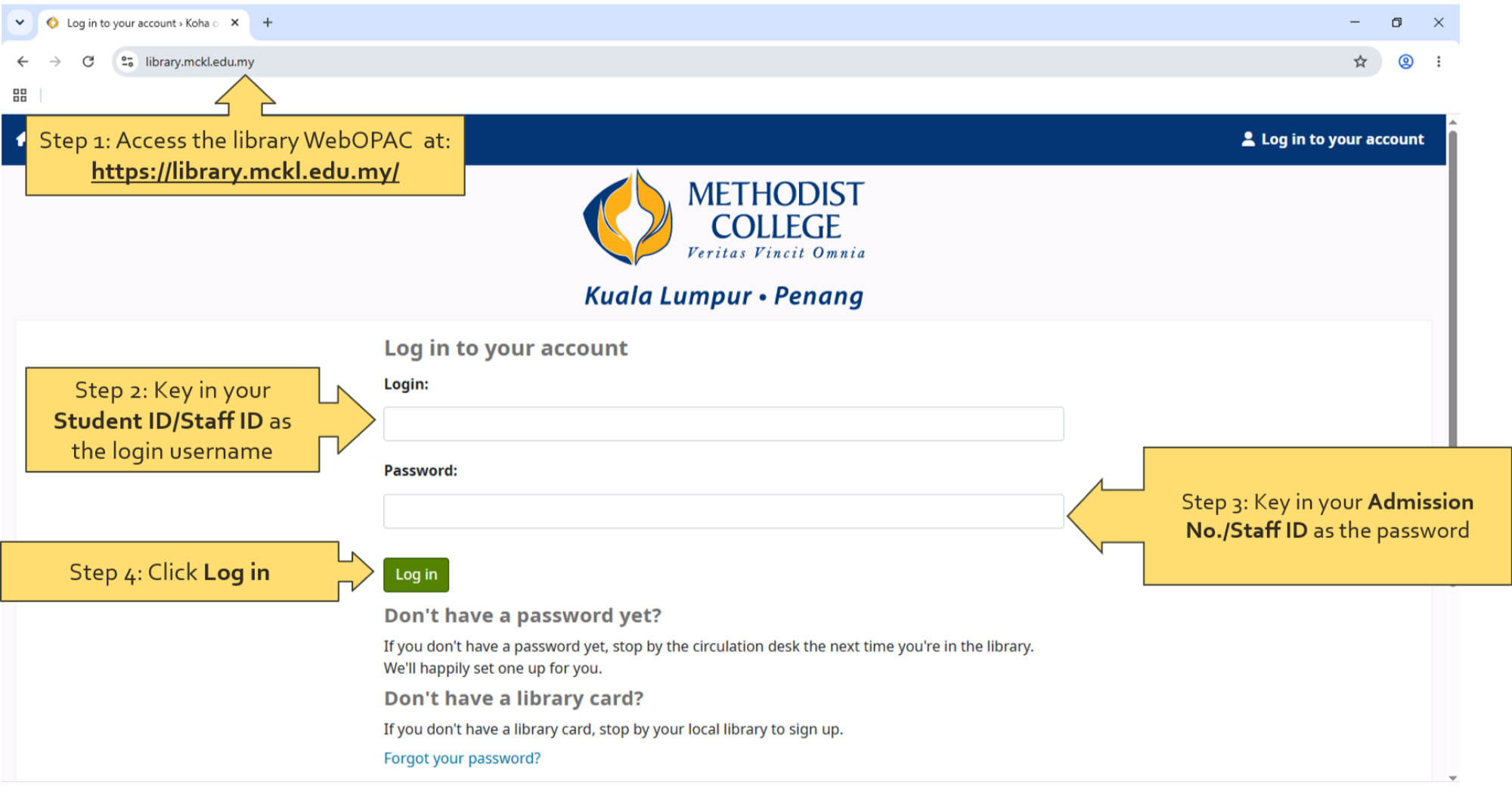
A
Account Login
To view your personal account information, you must log in using your username (Staff/students ID number) and password (IC/Passport number/Admission number/Staff ID) for the first time.
You are allowed to change your own password after logging in. First-time users are required to change their password.
B
Library New Arrivals
This option will display library books which are new arrivals. Click on the image of one of these books to see the book’s details.
C
Clearing Recent History
To clear your history, simply click the clear button next to the search history button.
D
Searching

D1
Basic Search
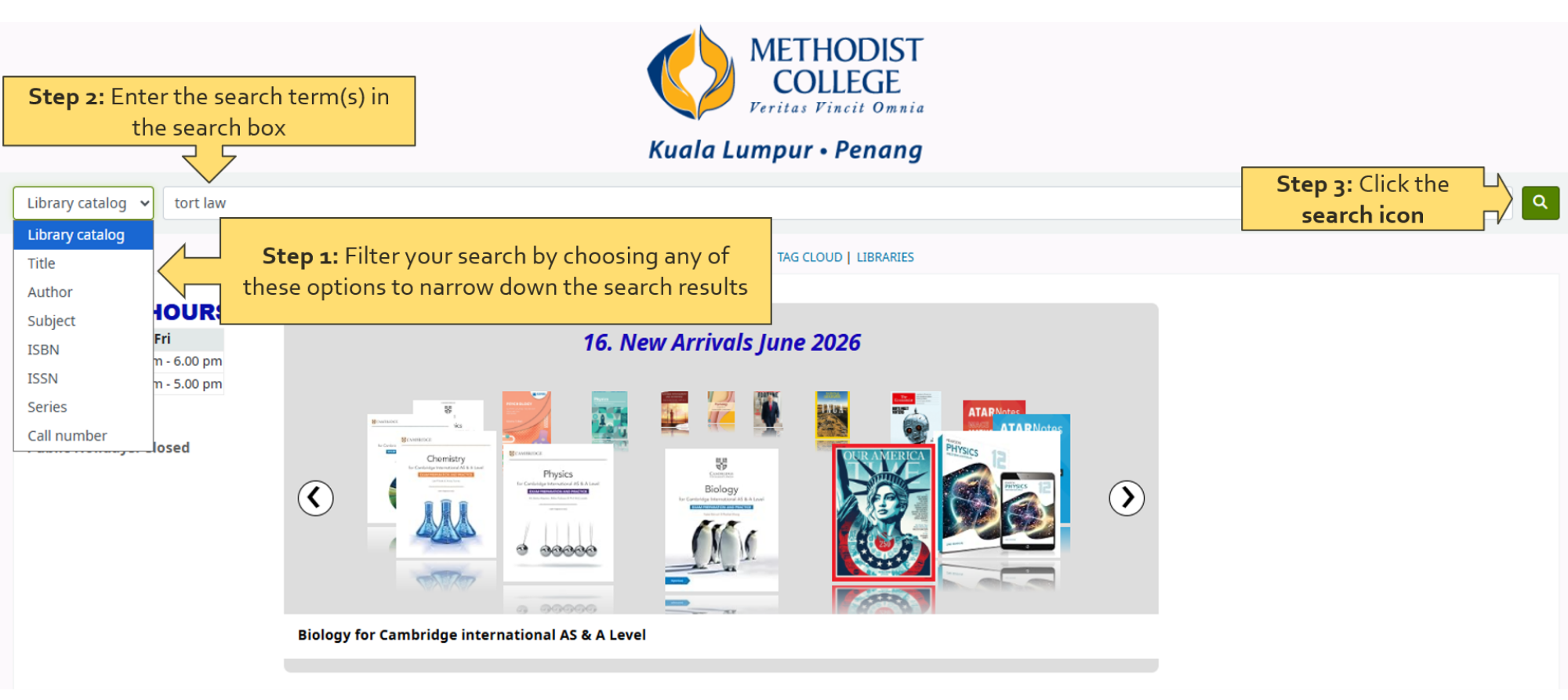
Items can be searched using the search bar below the logo with a relvant keyword(s) such as a subject or the title of a book.
D2
Advanced Search
Clicking on the “Advanced Search” button would lead you to another page where you can use filters such as item types, conditions, additional keyword, etc. to narrow down your searchs more efficiently.
D3
Tags and Tag Cloud
Any user can create tags for any books; these tags can then be seen in the tag cloud by you and other users. You can search for these books with these tags by clicking on the “tag cloud” button, which would link to another web page with all tags. Click on a specific tag to find books with that tag.
D4
Drop-Down List
To the left of the search bar is a drop-down menu that lets you use filters (such as “library catalogue”, “author”, “title”, etc.) along with keywords to get more relevant results.
D5
Refining Your Search
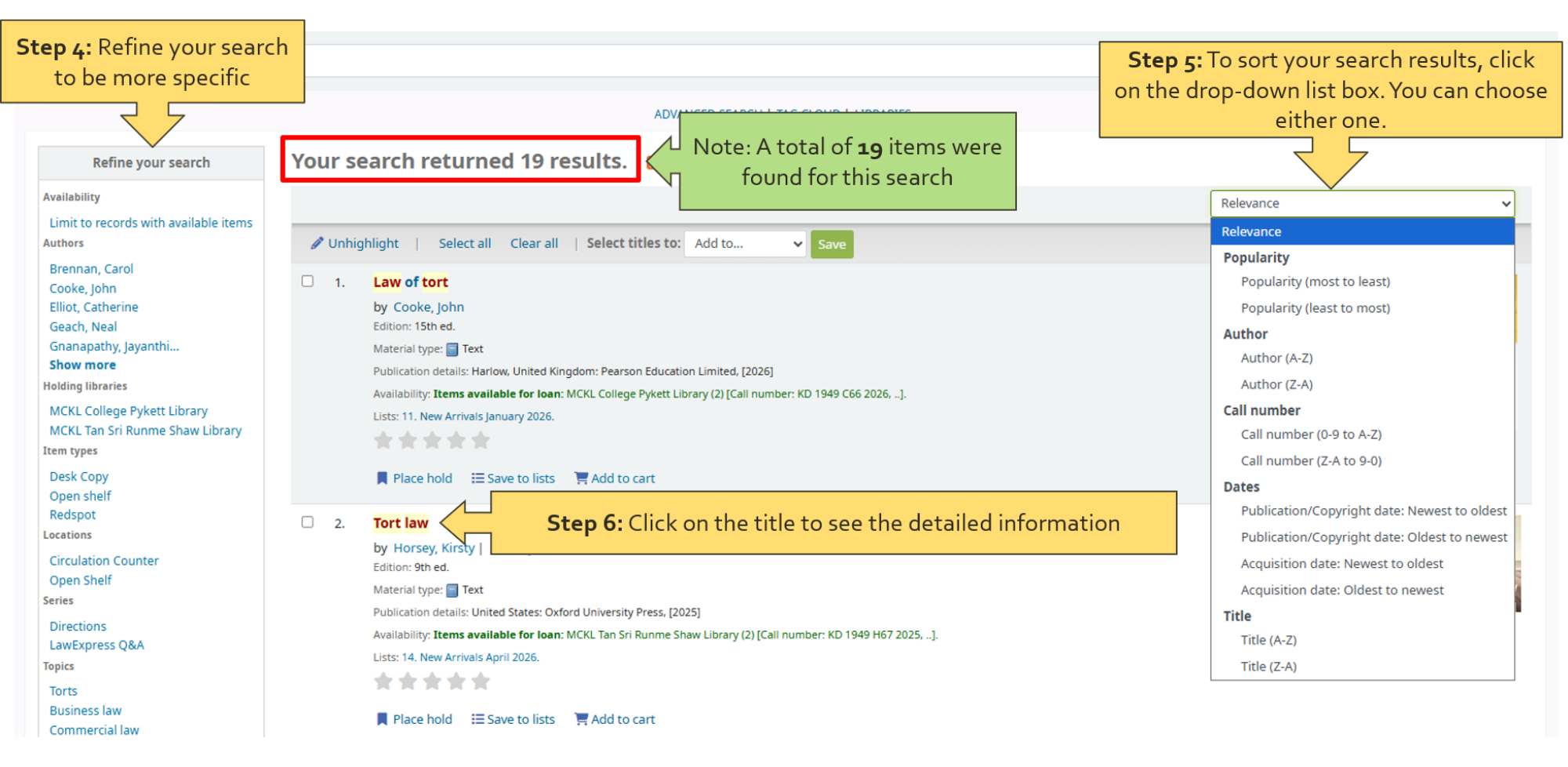
The list of search facets on the left side of the “Search Results” screen can help you refine your search. These search facets are hyperlinks that let you narrow, or filter, your search results according to different categories of information such as author, subject, date, location, etc.
To refine your search, click on a search facet. Your results list will be refined to include only those items in both your original search results and the search facet categories you selected. The search facets you see will change as you change your search parameters. You can pick multipke search facets. You can remove selected facets by clicking “x” in the bracket next to the selected facet.
D6
Filtering Search Result Box
By clicking on the checkbox next to the book, you can select a book or multiple book titles and save them to your cart/list or place them on hold using one of the following two options:
- At the top of the results page, just below the advanced search.
- At the bottom of each result entry where there are two buttons: “add to cart” and “place hold”.
E
Cart
This option temporarily stores the tiles of books you like during one session. Just click “Save to cart ” on the results page. You may see the total number of items added to your cart, as it is shown near the cart button.
NOTE: If you are logged out, the system will clear anything you have in the cart once the browser is closed.
F
List
This option permanently stores any titles of books which you like.
NOTE: You can only create a list if you are logged in. However, you can still access a public list.
G
Home
Links back to the main OPAC page.